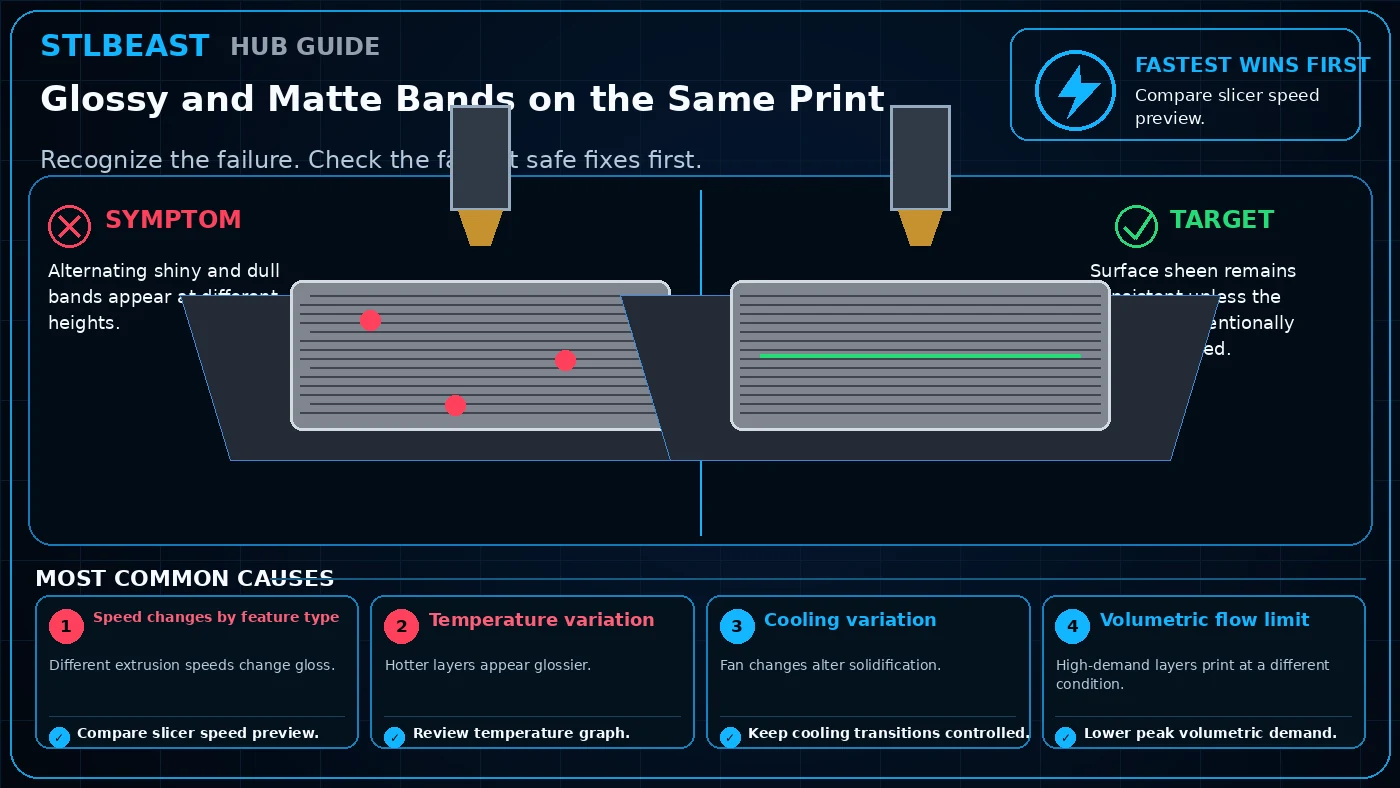
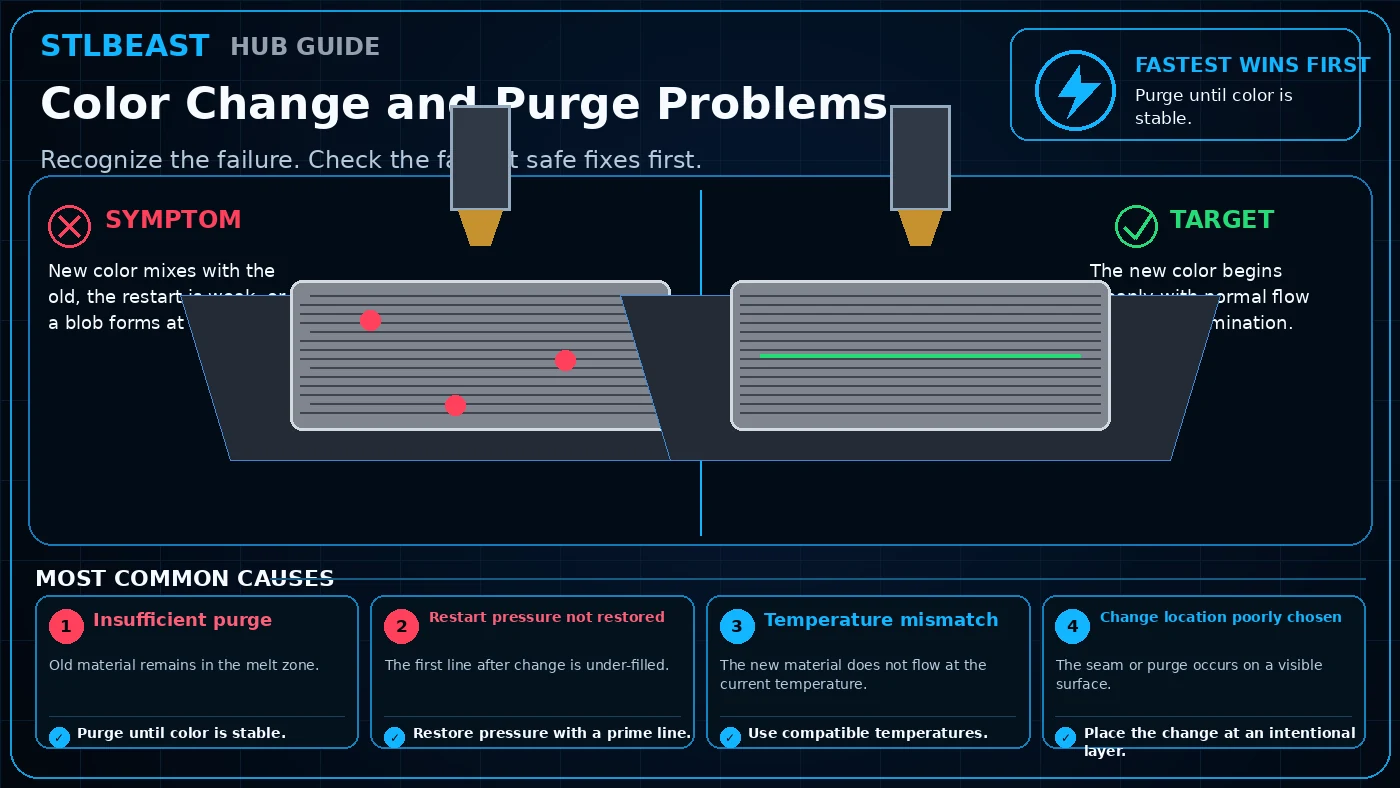
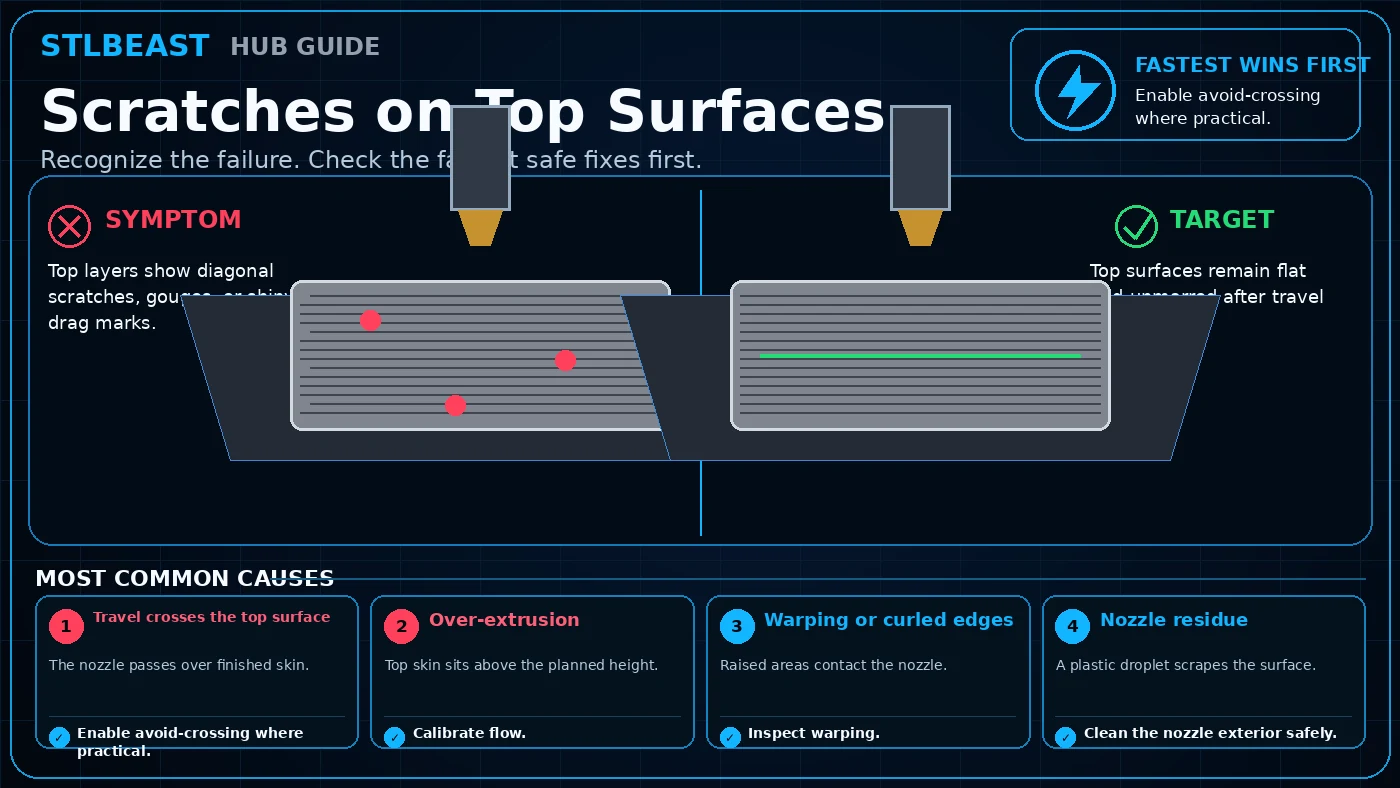
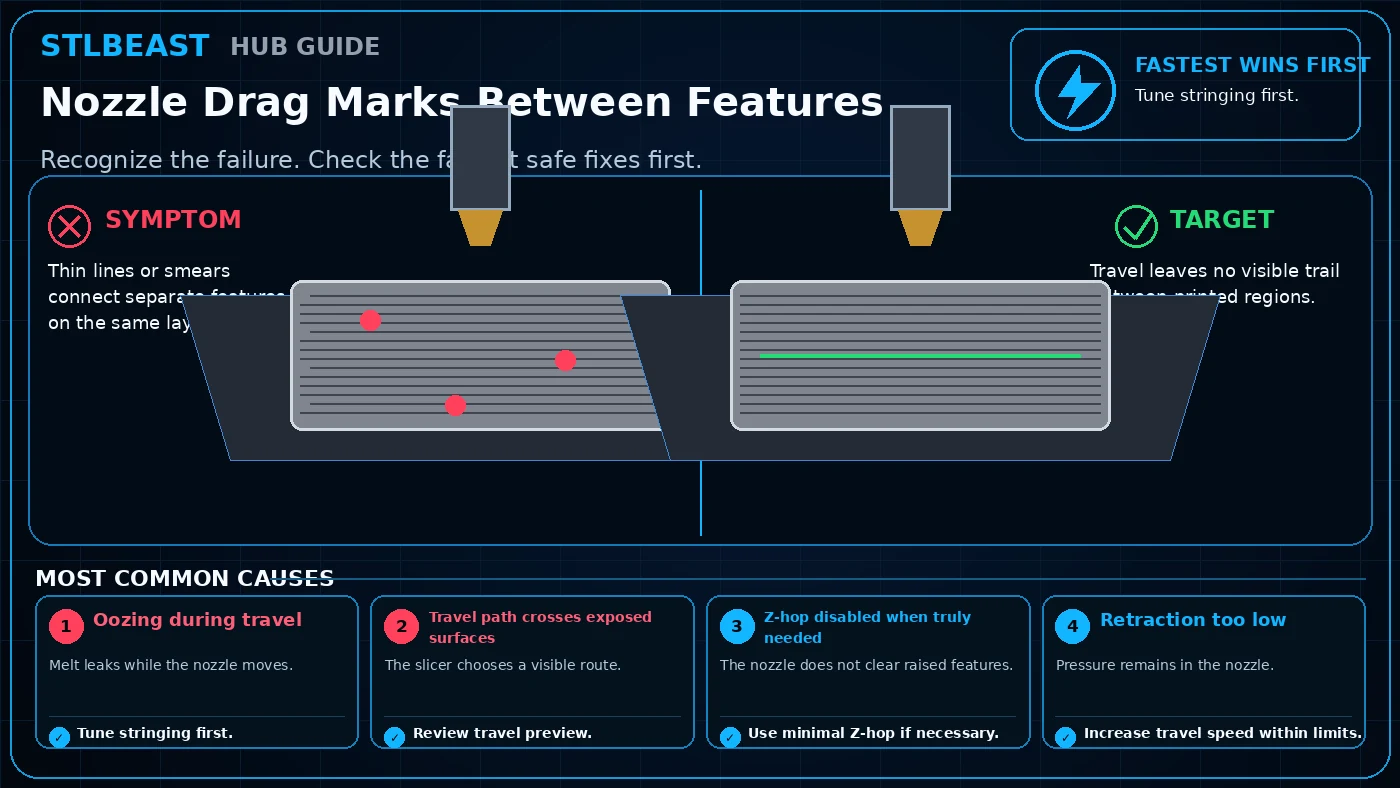
A detailed STLBEAST repair guide to stabilize temperature, speed, and cooling to keep surface finish consistent. Learn how to recognize the symptom, rank the likely causes, apply safe fixes in order, verify the result, and prevent the failure from returning.
Start hereStart with compare slicer speed preview, then review temperature graph. Confirm the result with a short representative test before changing additional settings.
First safe actionRun the first safe check and change one variable at a time.
Proof targetA small representative test no longer shows the original symptom.
Match the failed area to the visual before changing a setting.
Repair progress0 of 8 complete
Step 1 of 8
Document the failure and confirm that it matches this guide: Alternating shiny and dull bands appear at different heights.
Keep the problem and target visual open while you make this change.
Why this matters
Different extrusion speeds change gloss.
Setting or checkOuter-wall speed
Use a stable quality speed before changing many other values.
Expected result
Surface sheen remains consistent unless the geometry intentionally changes speed.
Step 2 of 8
Return extreme overrides to a known printer, nozzle, material, and slicer profile so the diagnosis starts from a stable baseline.
Keep the problem and target visual open while you make this change.
Why this matters
Hotter layers appear glossier.
Setting or checkTemperature
Too hot softens details; too cold weakens flow and bonding.
Expected result
The same test succeeds at least twice without a new artifact appearing.
Step 3 of 8
Check speed changes by feature type. Compare slicer speed preview.
Keep the problem and target visual open while you make this change.
Why this matters
Fan changes alter solidification.
Setting or checkFlow/pressure advance
Calibrate before compensating with seam or wipe tricks.
Expected result
No safety warning, unusual noise, heater error, binding, or material damage is introduced by the change.
Step 4 of 8
Check temperature variation. Review temperature graph.
Keep the problem and target visual open while you make this change.
Why this matters
High-demand layers print at a different condition.
Setting or checkCooling
Match material and feature size; uneven cooling changes finish.
Expected result
The successful values are recorded with printer, nozzle, material, slicer, and date.