
Input Shaping Basics for Cleaner Corners
A detailed STLBEAST repair guide to reduce ringing after mechanical issues are corrected. Learn how to recognize the symptom, rank the likely causes, apply safe fixes in order, verify the result, and prevent the failure from returning.
Start with fix mechanical play first, then measure using supported method. Confirm the result with a short representative test before changing additional settings.
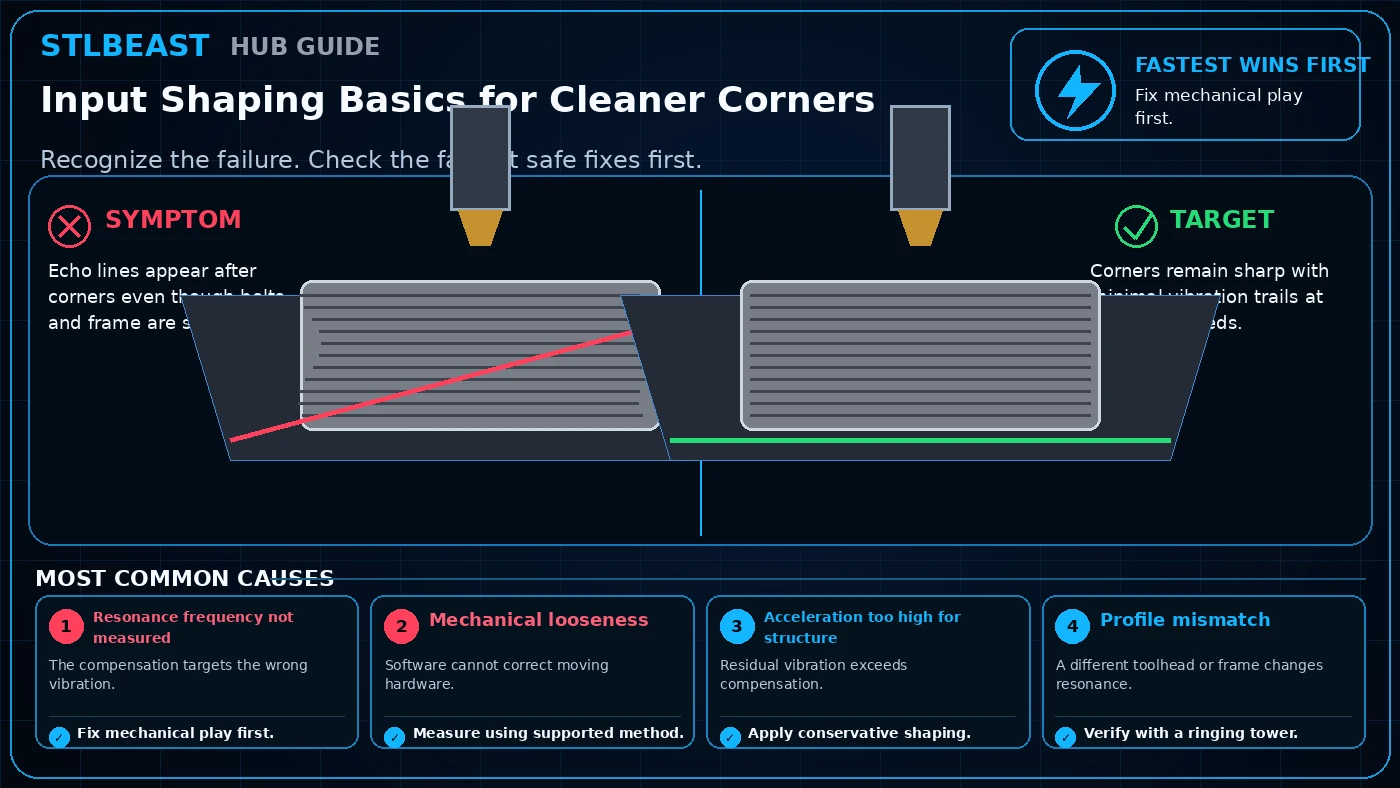
See the sequence before you start
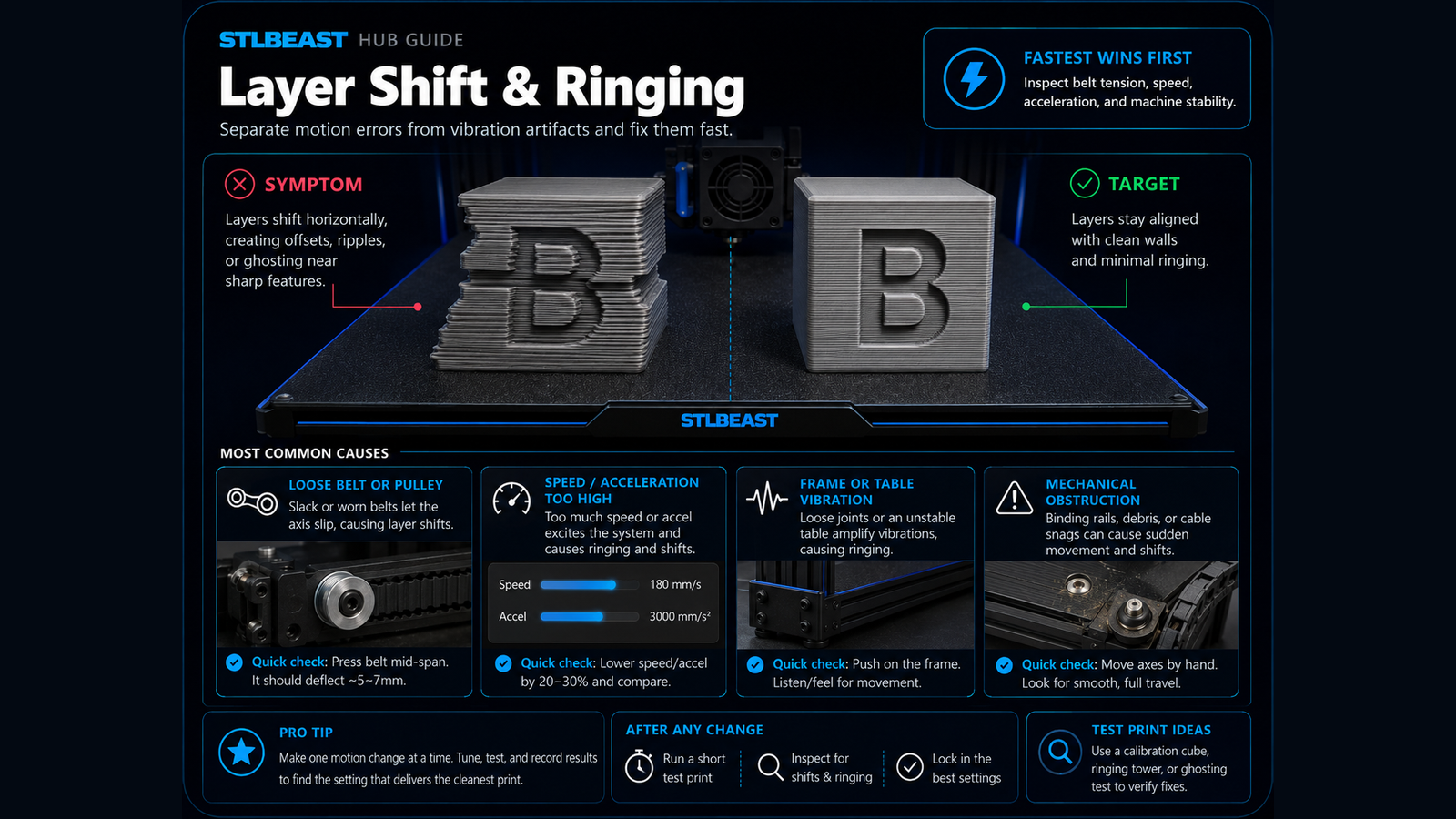
Match the visible symptom, work through the four visual checkpoints, and prove the result with a small test.
Start fast or open every detail
Quick Fix keeps the safest first checks and proof steps in view. Full Guide reveals the complete settings, printer context, advanced tests, sources and FAQs.
Quick Fix mode is active.
The compensation targets the wrong vibration.
- Corners remain sharp with minimal vibration trails at practical speeds.
- The same test succeeds at least twice without a new artifact appearing.
Use the smallest useful test, keep the winning change, and record the result.
Make this guide easier to apply to your setup
Select what you use. The page highlights relevant material, slicer and printer notes without hiding the complete source-backed guide.
Choose any setup details above to emphasize matching notes and produce a safer starting summary.
Know what to do now—and what comes next
Follow one controlled path. Do not stack unrelated changes before the proof test.
- 1Confirm the visual clue
Compare the failed area with the problem and target visuals.
- 2Run the safest first checks
Run the first safe check and change one variable at a time.
- 3Print the proof test
A small representative test no longer shows the original symptom.
- 4Escalate only if needed
Use the next-route guides only when the original symptom remains.
Which description is closest to what you see?
Select the closest match. This does not replace inspection; it moves the most relevant starting point to the front.
The compensation targets the wrong vibration.
Before you change settings
- Confirm the exact printer, material, nozzle or resin, slicer, and recent hardware changes.
- Photograph the failure before removing the print so the evidence is not lost.
- Return extreme overrides to a known profile and change one variable at a time.
- Use a small calibration object or representative section before repeating a long print.
Recognize it, check safely, prove the fix
Use this map before changing multiple settings. The detailed procedure and source references follow below.
Fastest safe order
- Document the failure and confirm that it matches this guide: Echo lines appear after corners even though belts and frame are secure.
- Return extreme overrides to a known printer, nozzle, material, and slicer profile so the diagnosis starts from a stable baseline.
- Check resonance frequency not measured. Fix mechanical play first.
- Check mechanical looseness. Measure using supported method.
Stop immediately for
- Stay within the printer, material, resin, hotend, build-surface, electrical, ventilation, and personal-protection limits published by the manufacturers.
- Stop immediately for heater errors, smoke, electrical damage, severe binding, or resin exposure.
Proof of success
Corners remain sharp with minimal vibration trails at practical speeds.
What it looks like
- Echo lines appear after corners even though belts and frame are secure.
- The problem may become more obvious after speed, temperature, geometry, or print height changes.
- The failure can repeat in the same region or appear only under higher load.
- A correct result should match this target: Corners remain sharp with minimal vibration trails at practical speeds.
Most likely causes
- Resonance frequency not measuredThe compensation targets the wrong vibration.
- Mechanical loosenessSoftware cannot correct moving hardware.
- Acceleration too high for structureResidual vibration exceeds compensation.
- Profile mismatchA different toolhead or frame changes resonance.
Repair sequence
Work from top to bottom. Stop when the failure is resolved, verify it with a small test and record the successful setup.
- Step 1Document the failure and confirm that it matches this guide: Echo lines appear after corners even though belts and frame are secure.
- Step 2Return extreme overrides to a known printer, nozzle, material, and slicer profile so the diagnosis starts from a stable baseline.
- Step 3Check resonance frequency not measured. Fix mechanical play first.
- Step 4Check mechanical looseness. Measure using supported method.
- Step 5Inspect acceleration too high for structure. Apply conservative shaping.
- Step 6Rule out profile mismatch. Verify with a ringing tower.
- Step 7Change only the single setting or hardware condition supported by the evidence, then run a small test that reproduces the original failure.
- Step 8Compare the test against the target condition, record the successful value, and save it in a printer/material profile before repeating the full print.
Settings to review
| Setting | How to use it |
|---|---|
| Acceleration | Return to a conservative baseline before diagnosing mechanical motion. |
| Travel speed | High speed can expose play, binding, or resonance. |
| Input shaping | Apply only after belts, frame, wheels, rails, and pulleys are sound. |
| Motor current | Use only manufacturer-supported values; excess current creates heat. |
Material notes
Motion faults usually repeat regardless of filament, although flexible or high-flow profiles may hide or amplify them.
Increase sensitivity to frame movement and bed wobble.
Need more conservative acceleration.
Make cable strain and carriage play more important.
Printer context
Check bed seating, gantry alignment, belts, wheels and first-layer consistency across the plate.
Start with the official profile; inspect belt balance, input shaping, flow, pressure advance and chamber conditions.
Confirm delta calibration, tower movement, belt tension, effector stability and full-bed mapping.
Use resin-specific exposure, lift, support, temperature, wash, cure and protective procedures.
Where to look in the slicer
Quality, Strength, Speed, Support and Filament; use built-in calibration for temperature, flow and pressure advance.
Print, Filament and Printer Settings; inspect the layer preview before export.
Quality, Walls, Top/Bottom, Material, Speed, Travel, Cooling, Support and Adhesion.
Printer/resin profile, exposure, lift/retract, support contact, raft, hollowing and drain settings.
Controlled test method
Do not repeat the full print while guessing. Use a small test that reproduces the same feature and record the result.
- Save the current profile or photograph every relevant setting.
- Choose one suspected cause from the ranked list and change only the matching variable.
- Print the smallest useful test with the same material, nozzle, plate, and environment.
- Compare the result with the target visual, keep the winning change, and then test the real model.
Confirm the repair before repeating the full print
Use the same printer, material, slicer and key settings as the failed model.
The original symptom is absent and the target feature is repeatable.
The symptom remains in the same location or stage.
Return to the ranked causes and test the next single variable.
Recheck the visual diagnosis →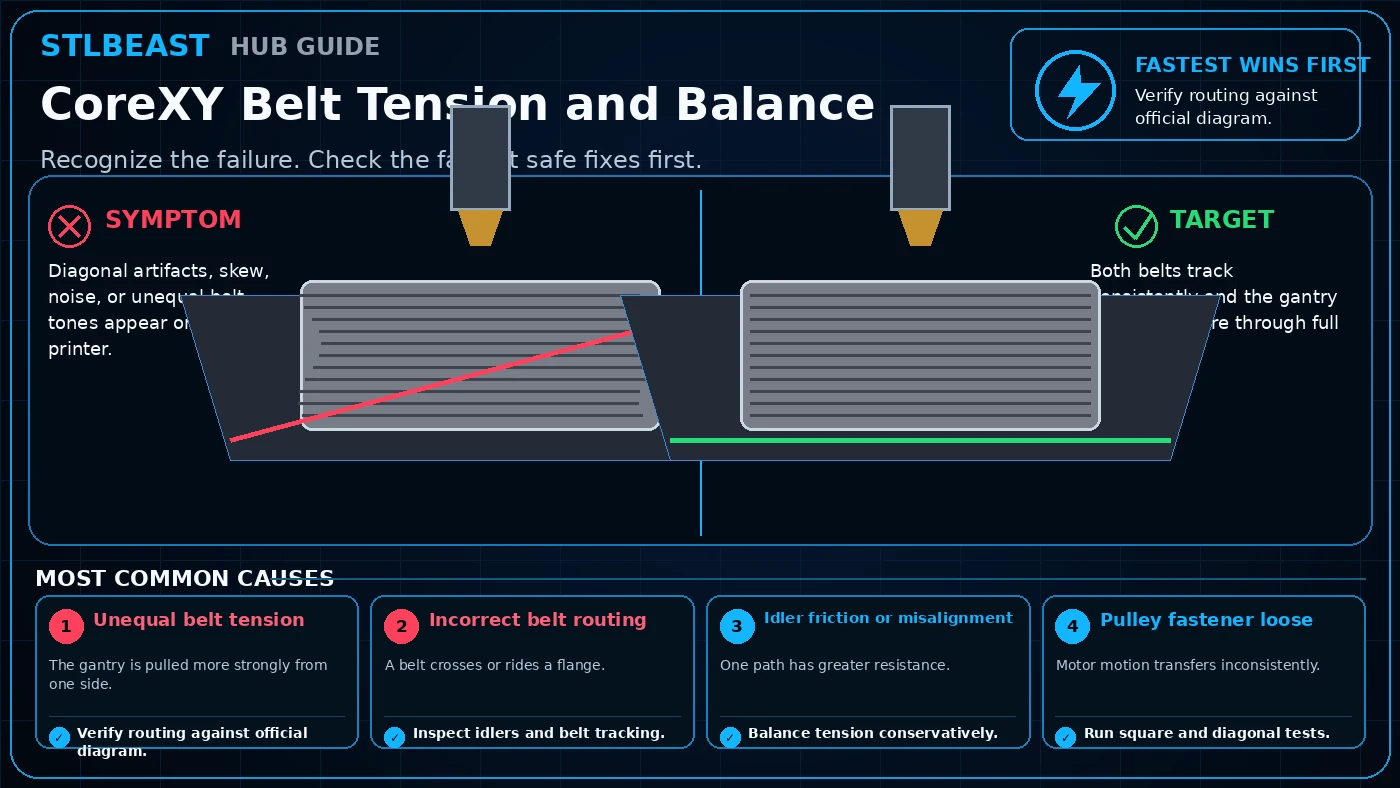 Next path 1CoreXY Belt Tension and Balance
Open this related Motion & Mechanics guide when the first repair path does not fully explain the remaining symptom.
Open this guide →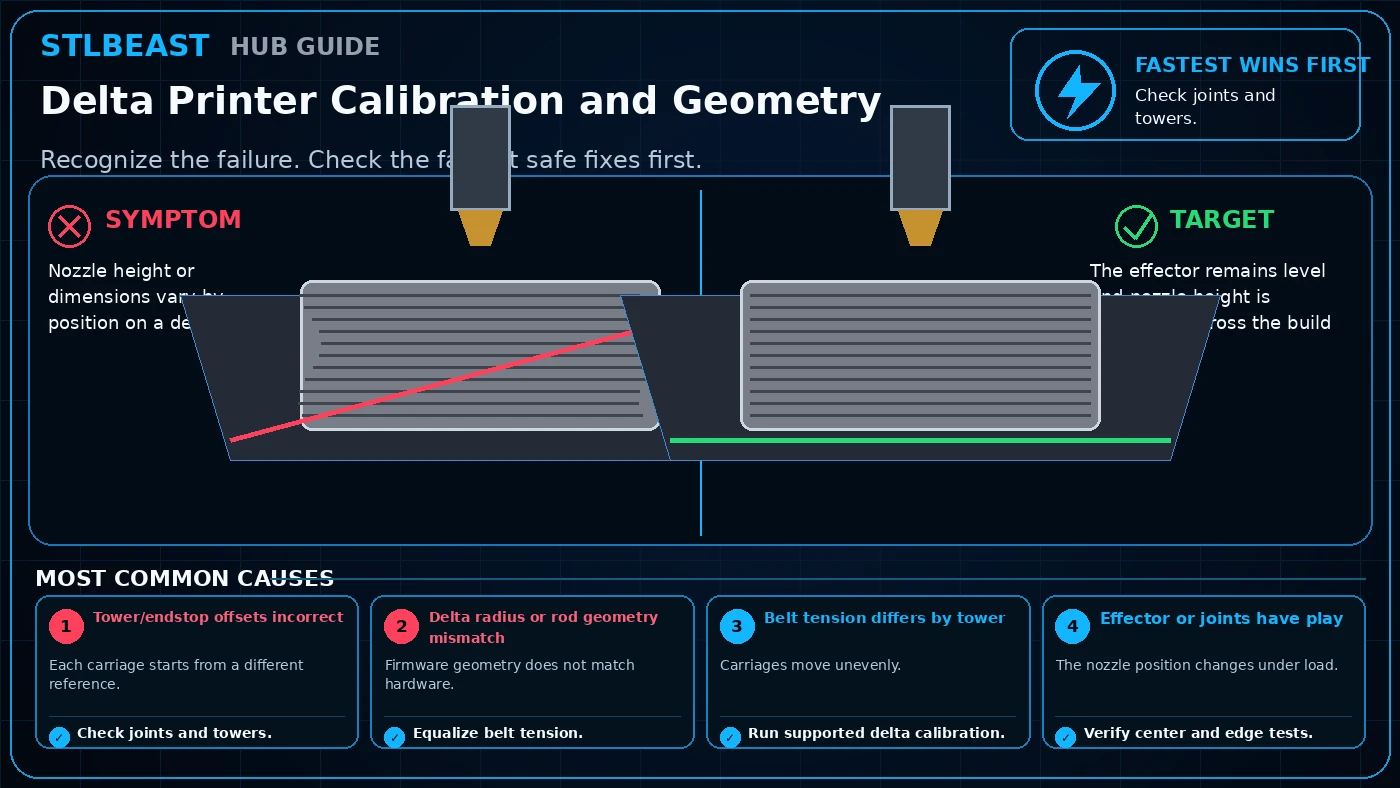 Next path 2Delta Printer Calibration and Geometry
Open this related Motion & Mechanics guide when the first repair path does not fully explain the remaining symptom.
Open this guide →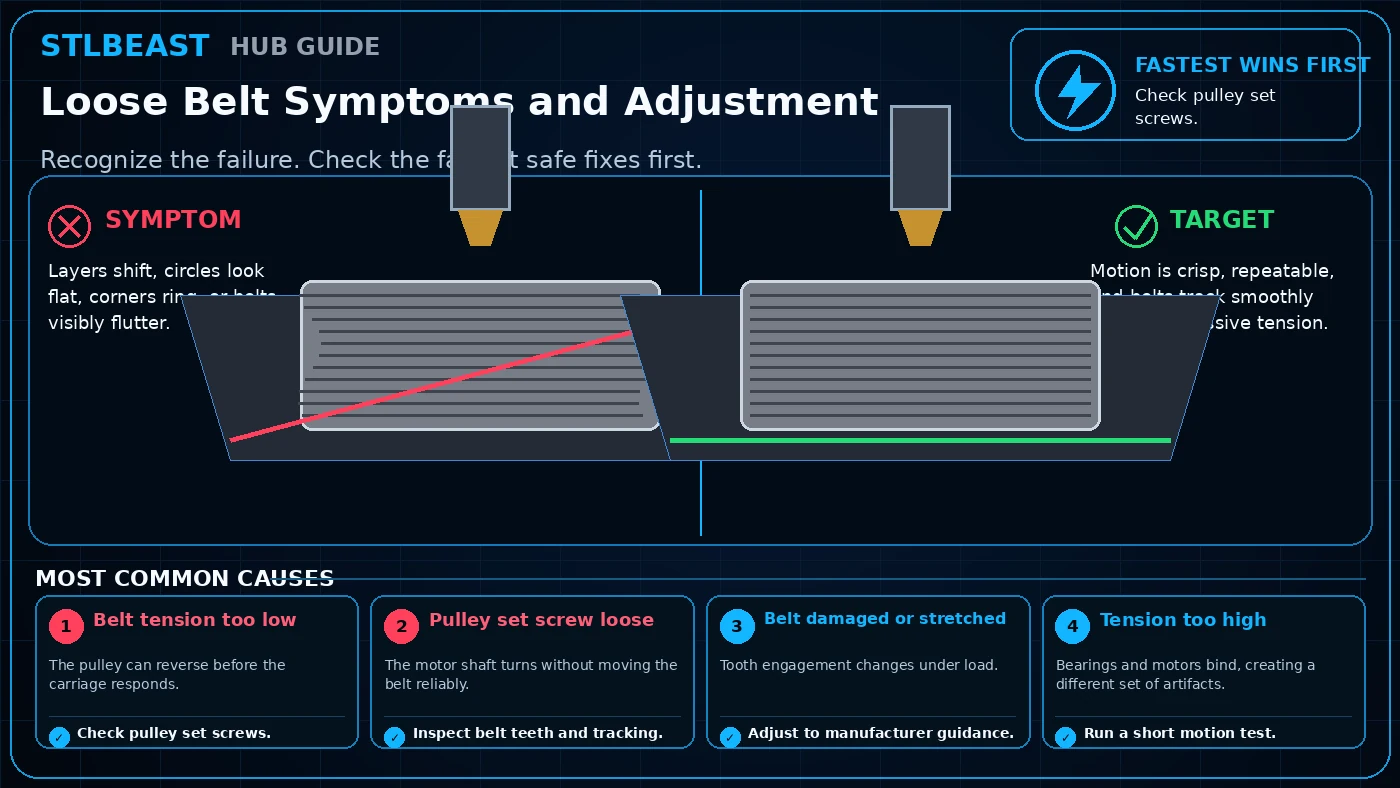 Next path 3Loose Belt Symptoms and Adjustment
Open this related Motion & Mechanics guide when the first repair path does not fully explain the remaining symptom.
Open this guide →How to verify the fix
- Corners remain sharp with minimal vibration trails at practical speeds.
- The same test succeeds at least twice without a new artifact appearing.
- No safety warning, unusual noise, heater error, binding, or material damage is introduced by the change.
- The successful values are recorded with printer, nozzle, material, slicer, and date.
Choose a result after the print so the guide can point you to the correct next action.
Prevent it next time
- Keep a known-good baseline profile and duplicate it before experimenting.
- Inspect the relevant mechanical or material condition during routine maintenance instead of waiting for a failed print.
- Change one variable at a time and use short calibration objects to avoid wasting long prints.
- Re-check the result after nozzle, build plate, hotend, firmware, slicer, or material changes.
Useful public sample. Complete personalized profile for members.
Everyone can use the full guide and receive a safe starting sample. Members unlock all machine/material values, adjustment order, saved Profile Vault history and deeper AI Doctor linkage.
Sources and further reading
These references support the troubleshooting sequence. Follow the printer, slicer, filament, resin, and build-surface manufacturer limits for your exact equipment.
Frequently asked questions
What should I check first for input shaping basics for cleaner corners?
Fix mechanical play first. It is the fastest low-risk check and often separates a profile issue from a hardware or material issue.
Can resonance frequency not measured cause this problem?
The compensation targets the wrong vibration. Confirm it with the smallest safe test before changing unrelated settings.
Should I change several settings at once?
No. Multiple simultaneous changes hide the real cause and make the successful setup difficult to reproduce.
When should I stop troubleshooting and inspect hardware?
Stop if you see heater errors, electrical damage, binding, smoke, unusual heat, severe collisions, leaking resin, or any condition outside the manufacturer safety guidance.
Related fixes
Tools matched to this repair path
Explore a useful STL for your next project.
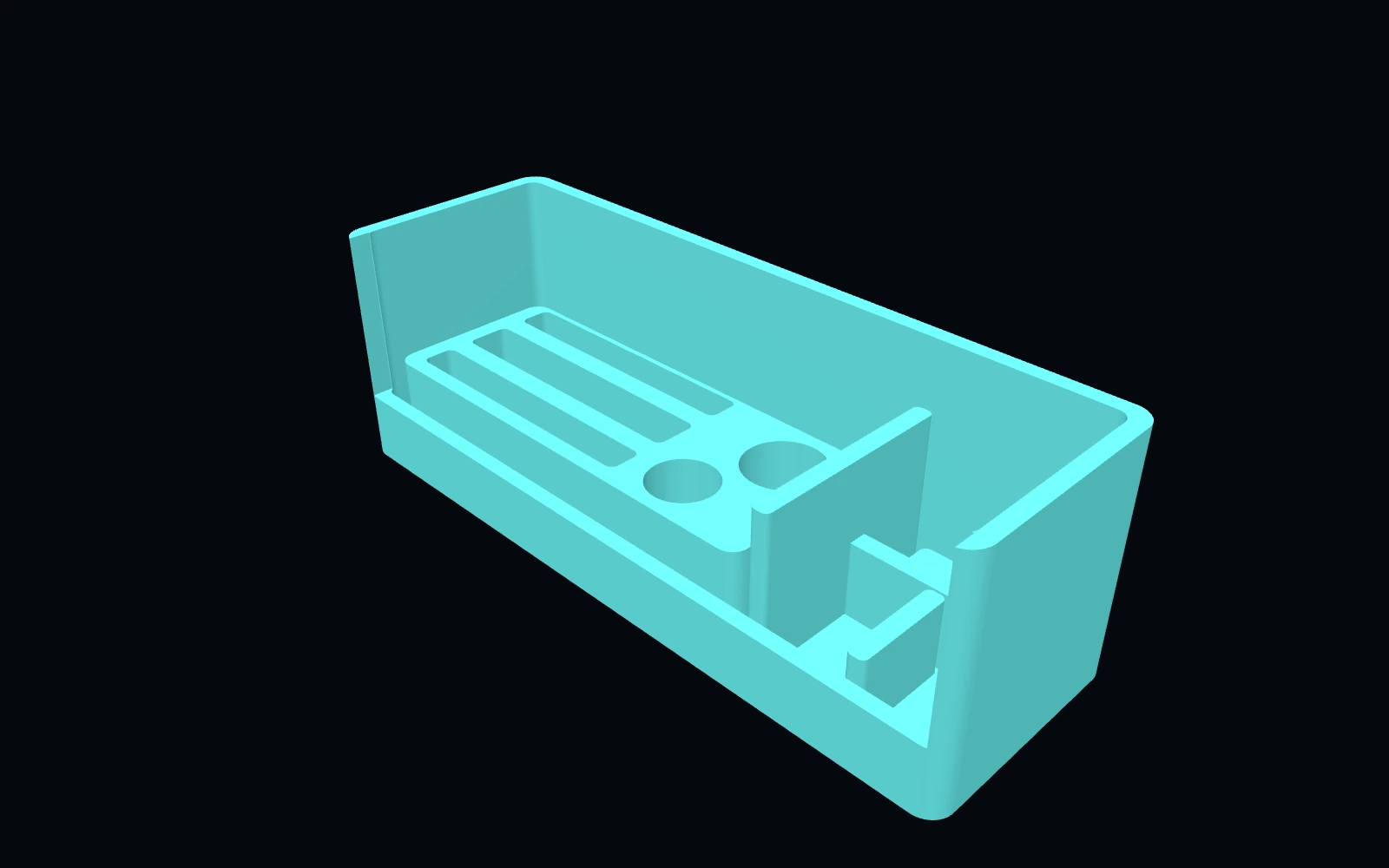 Original digital STLSTLBEAST Belt Tension & Motion Service Station V5
A motion-system work deck for belt inspection, pulley and bearing staging, and tensioner hardware service.
$9.99 CAD · View product →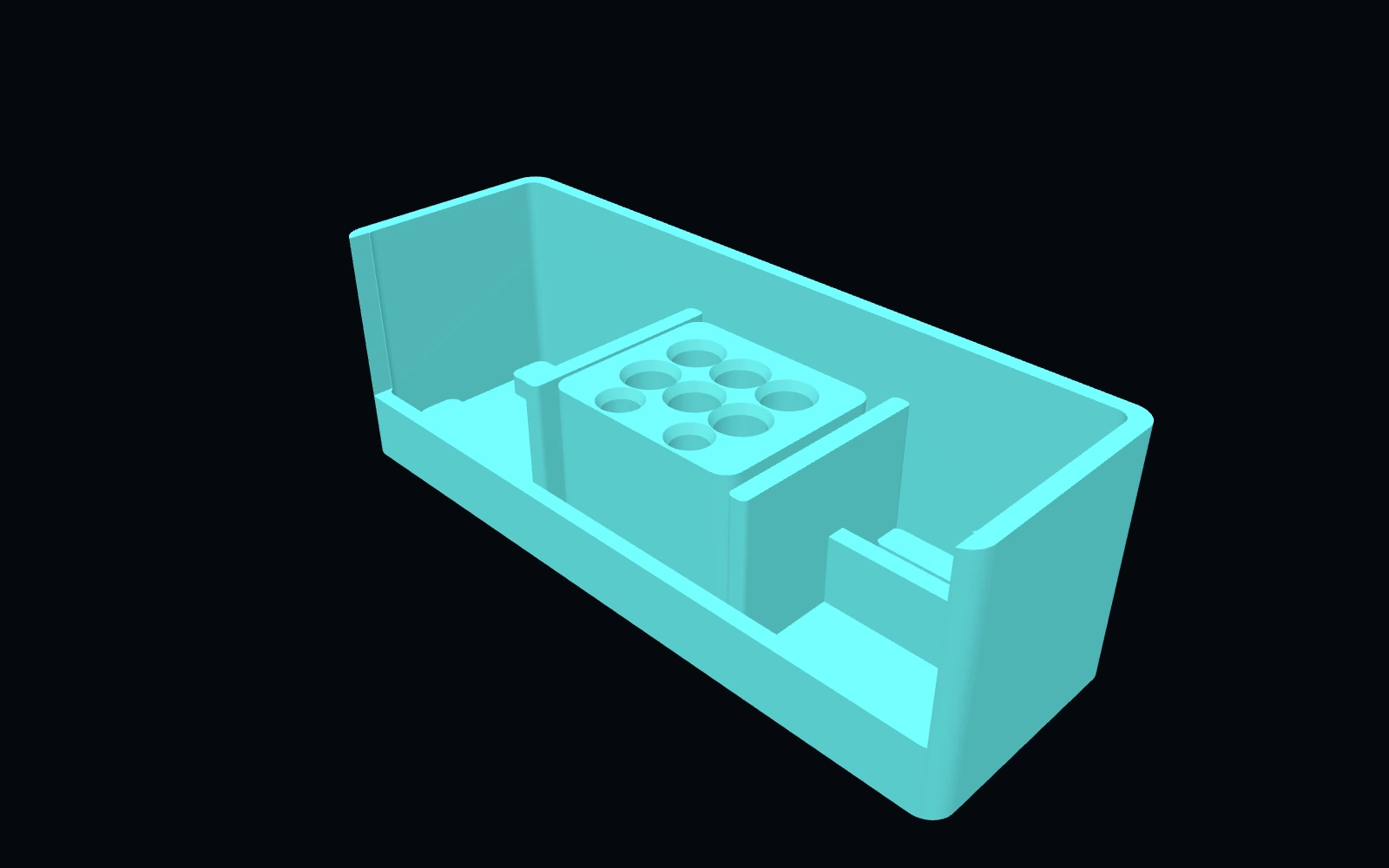 Original digital STLSTLBEAST Hotend Rebuild Station V1
A compact hotend maintenance station for nozzles, heater hardware, thermistors, spacers and rebuild tools.
$8.99 CAD · View product →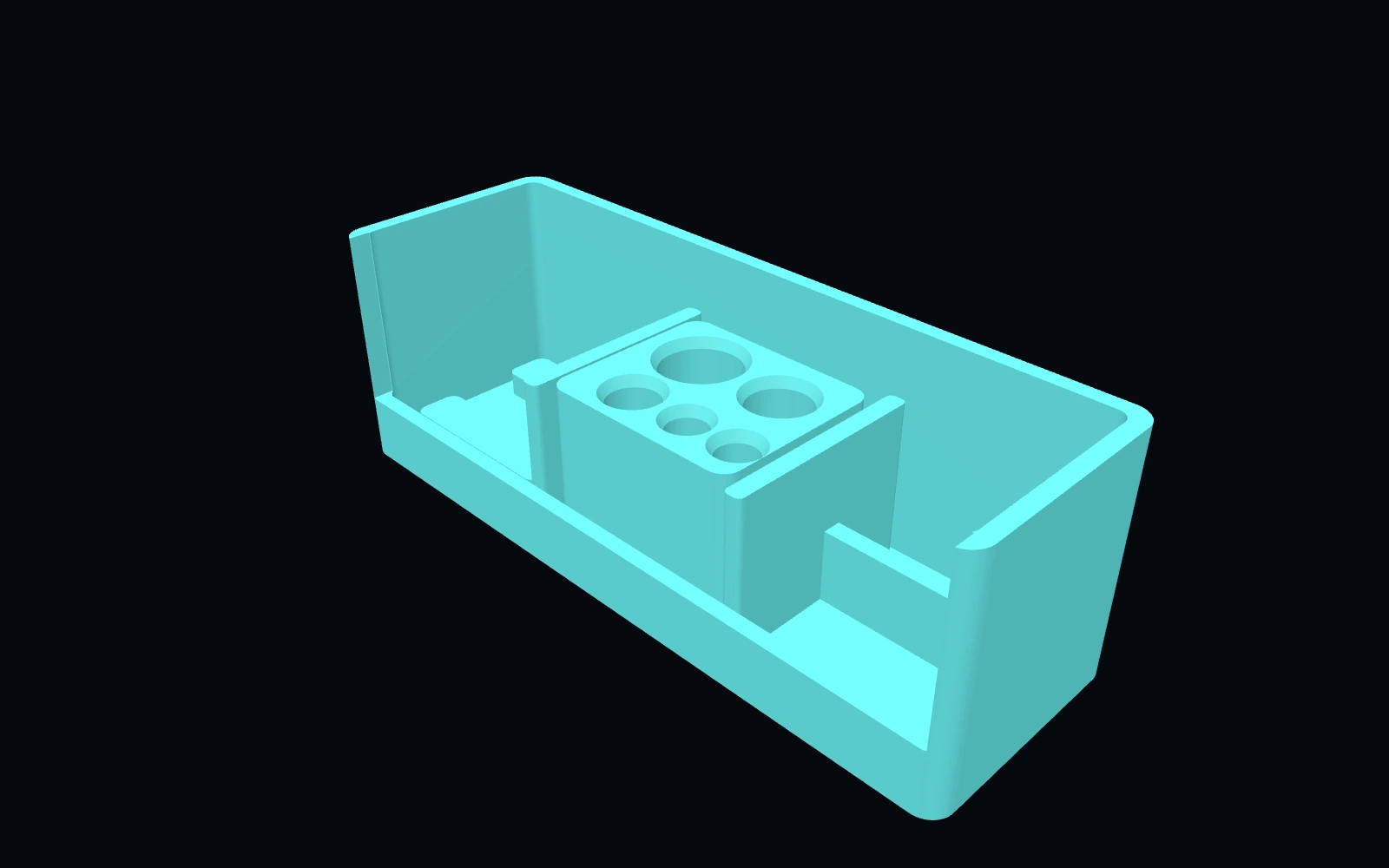 Original digital STLSTLBEAST Filament Path Rescue Station V5
A modular service station for clearing filament paths, staging cutters and picks, and organizing feed-system maintenance tools.
$8.99 CAD · View product →Did this fix your print?
Your anonymous answer improves the guide order and AI Doctor paths.