
Extruder Clicking or Grinding Filament
Fix skipped steps, clicking, chewed filament, weak extrusion, and feed interruptions. Use the ranked checks, controlled repair order, and proof test below to isolate the cause without stacking unrelated changes.
Clicking means the extruder cannot move filament at the requested rate. Find the restriction or tension problem before increasing motor current or flow.
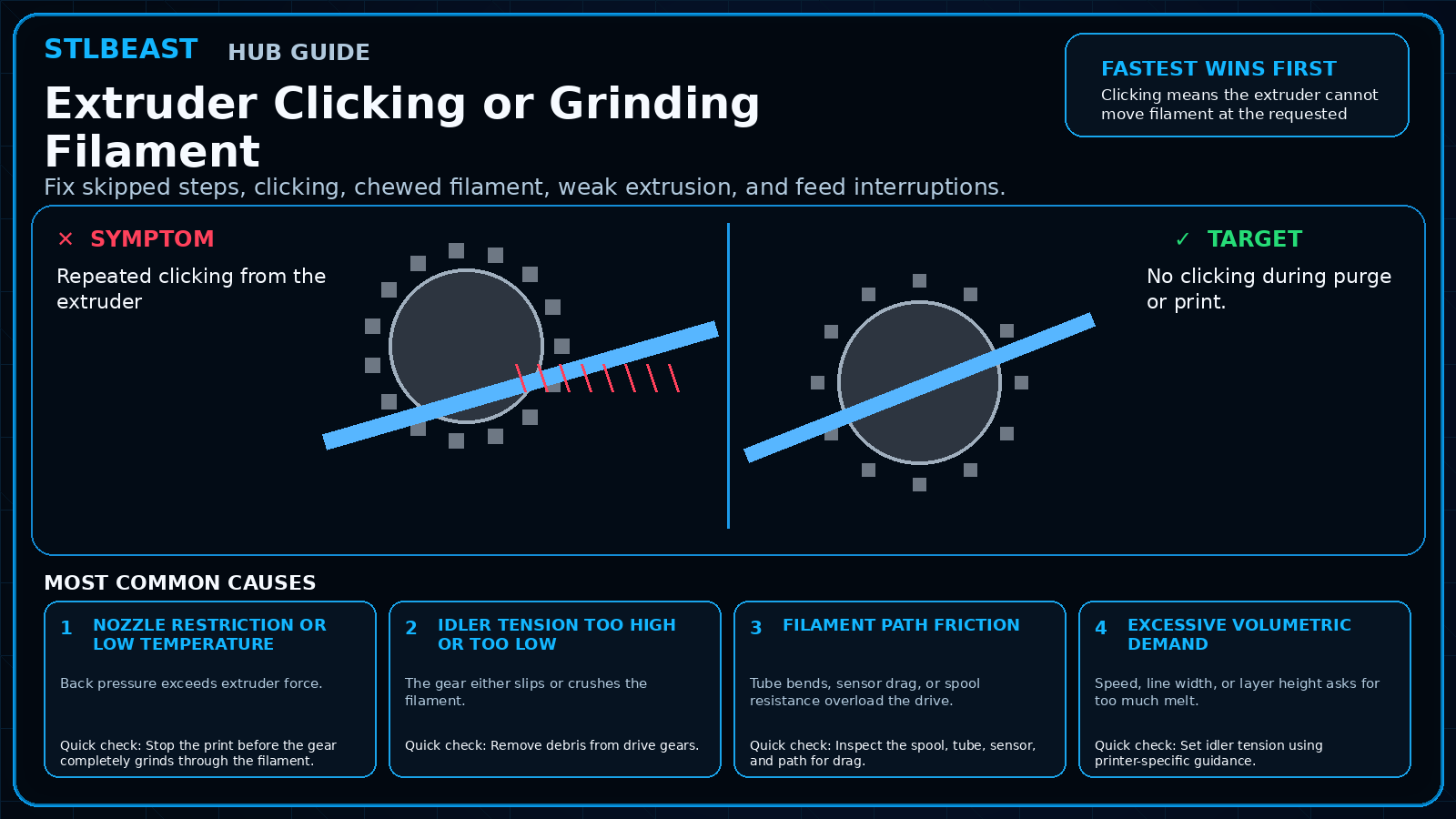
See the sequence before you start
Match the visible symptom, work through the four visual checkpoints, and prove the result with a small test.
Start fast or open every detail
Quick Fix keeps the safest first checks and proof steps in view. Full Guide reveals the complete settings, printer context, advanced tests, sources and FAQs.
Quick Fix mode is active.
Back pressure exceeds extruder force.
- No clicking during purge or print.
- Drive gear leaves normal consistent marks.
Use the smallest useful test, keep the winning change, and record the result.
Make this guide easier to apply to your setup
Select what you use. The page highlights relevant material, slicer and printer notes without hiding the complete source-backed guide.
Choose any setup details above to emphasize matching notes and produce a safer starting summary.
Know what to do now—and what comes next
Follow one controlled path. Do not stack unrelated changes before the proof test.
- 1Confirm the visual clue
Compare the failed area with the problem and target visuals.
- 2Run the safest first checks
Run the first safe check and change one variable at a time.
- 3Print the proof test
A small representative test no longer shows the original symptom.
- 4Escalate only if needed
Use the next-route guides only when the original symptom remains.
Which description is closest to what you see?
Select the closest match. This does not replace inspection; it moves the most relevant starting point to the front.
Back pressure exceeds extruder force.
Before you change settings
- Confirm the exact printer, material, nozzle or resin, slicer, and recent hardware changes.
- Photograph the failure before removing the print so the evidence is not lost.
- Return extreme overrides to a known profile and change one variable at a time.
- Use a small calibration object or representative section before repeating a long print.
Recognize it, check safely, prove the fix
Use this map before changing multiple settings. The detailed procedure and source references follow below.
Fastest safe order
- Stop the print before the gear completely grinds through the filament.
- Remove debris from drive gears.
- Inspect the spool, tube, sensor, and path for drag.
- Set idler tension using printer-specific guidance.
Stop immediately for
- Change one variable at a time and keep every adjustment inside the printer, hotend, build-surface, and filament manufacturer limits.
Proof of success
No clicking during purge or print.
What it looks like
- Repeated clicking from the extruder
- Ground filament dust around drive gear
- Deep tooth marks or flattened filament
- Flow returns after unloading and reloading
Most likely causes
- Nozzle restriction or low temperatureBack pressure exceeds extruder force.
- Idler tension too high or too lowThe gear either slips or crushes the filament.
- Filament path frictionTube bends, sensor drag, or spool resistance overload the drive.
- Excessive volumetric demandSpeed, line width, or layer height asks for too much melt.
Repair sequence
Work from top to bottom. Stop when the failure is resolved, verify it with a small test and record the successful setup.
- Step 1Stop the print before the gear completely grinds through the filament.
- Step 2Remove debris from drive gears.
- Step 3Inspect the spool, tube, sensor, and path for drag.
- Step 4Set idler tension using printer-specific guidance.
- Step 5Check for a partial clog and verify temperature.
- Step 6Reduce speed/volumetric demand to the proven profile.
- Step 7For TPU, reduce speed and keep the path constrained.
Settings to review
| Setting | How to use it |
|---|---|
| Retraction count | Excessive repeated retractions can chew one filament area. |
| Volumetric flow | Reduce before altering motor current. |
| Idler tension | Use the manufacturer procedure. |
Material notes
Needs low friction and slower controlled feeding.
May fracture or grind more easily.
Printer context
Check bed seating, gantry alignment, belts, wheels and first-layer consistency across the plate.
Start with the official profile; inspect belt balance, input shaping, flow, pressure advance and chamber conditions.
Confirm delta calibration, tower movement, belt tension, effector stability and full-bed mapping.
Use resin-specific exposure, lift, support, temperature, wash, cure and protective procedures.
Where to look in the slicer
Quality, Strength, Speed, Support and Filament; use built-in calibration for temperature, flow and pressure advance.
Print, Filament and Printer Settings; inspect the layer preview before export.
Quality, Walls, Top/Bottom, Material, Speed, Travel, Cooling, Support and Adhesion.
Printer/resin profile, exposure, lift/retract, support contact, raft, hollowing and drain settings.
Controlled test method
Do not repeat the full print while guessing. Use a small test that reproduces the same feature and record the result.
- Save the current profile or photograph every relevant setting.
- Choose one suspected cause from the ranked list and change only the matching variable.
- Print the smallest useful test with the same material, nozzle, plate, and environment.
- Compare the result with the target visual, keep the winning change, and then test the real model.
Confirm the repair before repeating the full print
Use the same nozzle, material and hotend temperature planned for the print.
Flow is smooth and the wall is continuous with stable width.
Clicking, gaps, pulsing or inconsistent line width remains.
Inspect spool path, gears, heat break, nozzle and calibrated flow.
Recheck the visual diagnosis →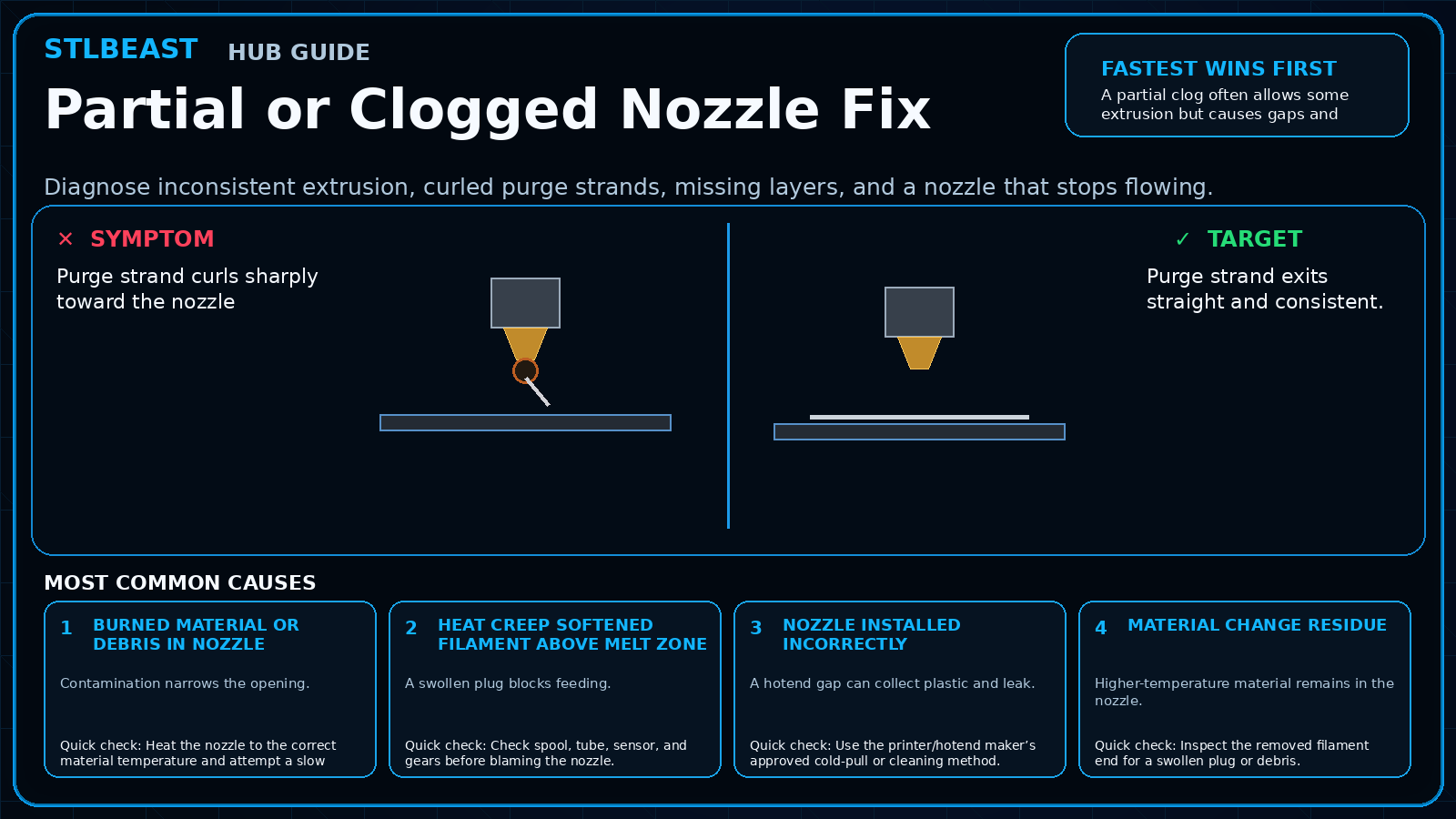 Next path 1Partial or Clogged Nozzle Fix
Use this next when flow remains weak, intermittent or uneven after the first checks.
Open this guide →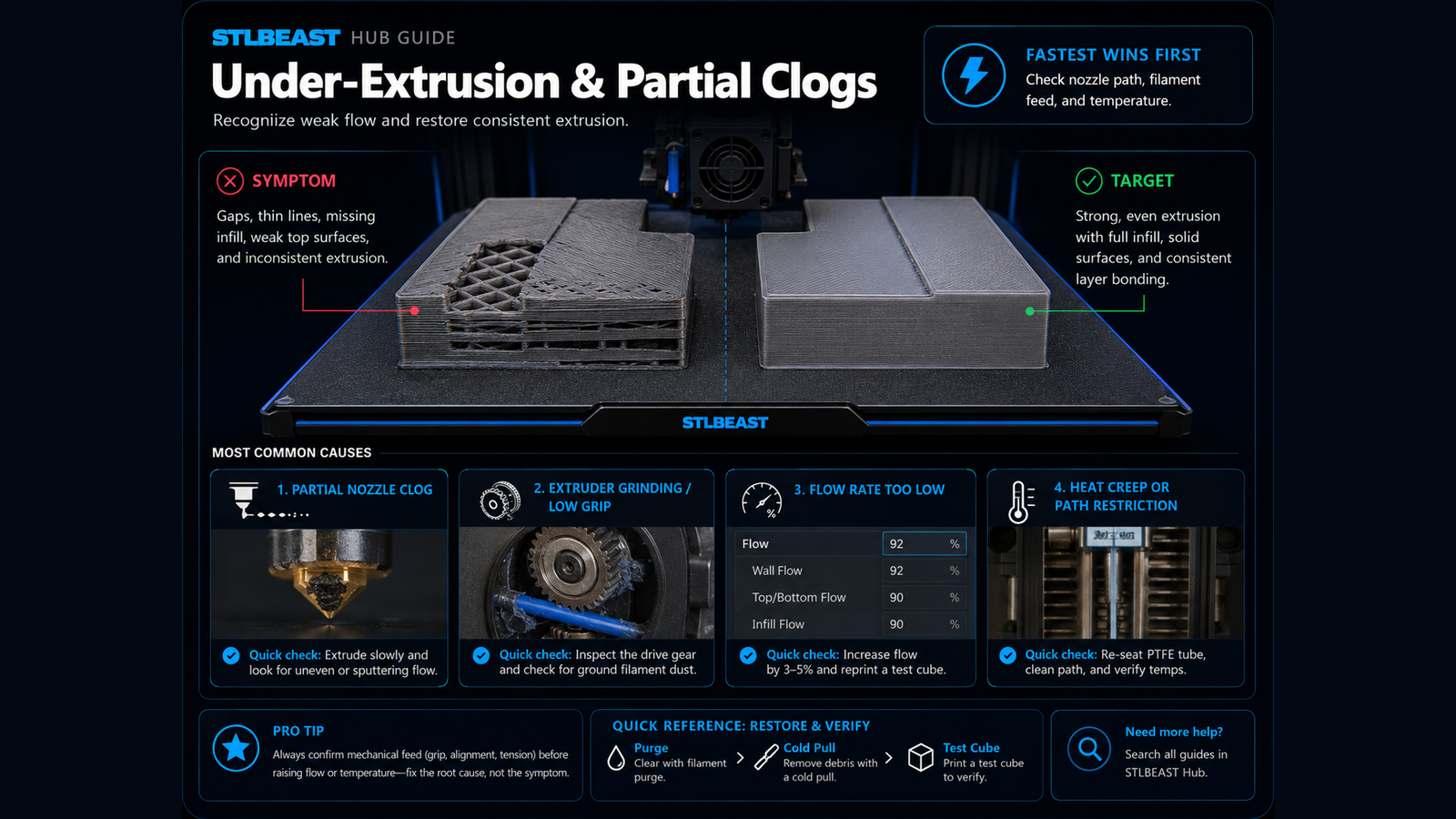 Next path 23D Printer Under-Extrusion
Open this related Extrusion guide when the first repair path does not fully explain the remaining symptom.
Open this guide →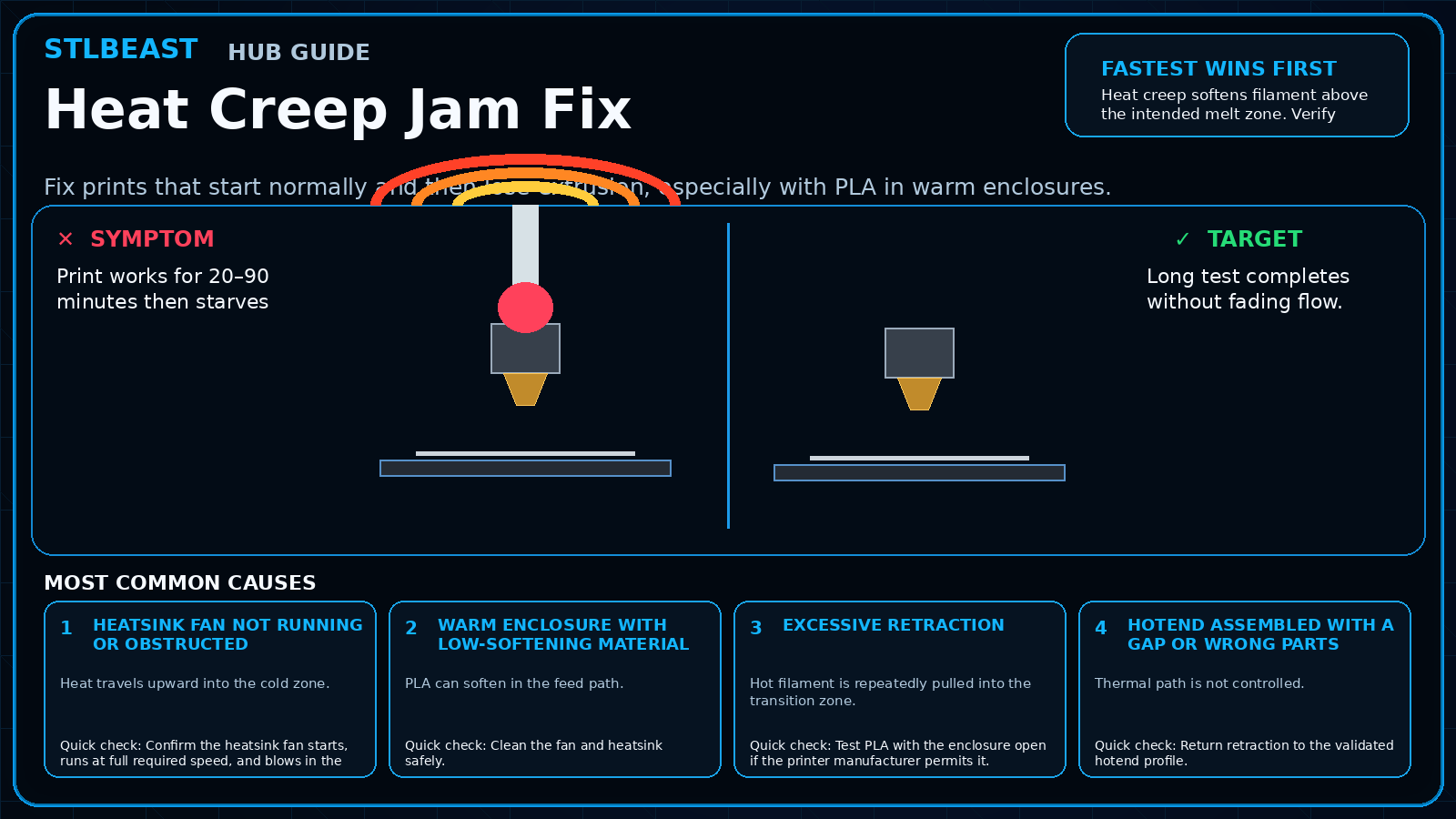 Next path 3Heat Creep Jam Fix
Use this next when flow fades after the hotend has been warm for a while.
Open this guide →How to verify the fix
- No clicking during purge or print.
- Drive gear leaves normal consistent marks.
- No filament dust accumulates.
- Flow remains stable through high-demand sections.
Choose a result after the print so the guide can point you to the correct next action.
Prevent it next time
- Clean gears during maintenance.
- Use smooth spool holders.
- Keep tubes and sensors aligned.
- Save realistic speed limits per material.
Useful public sample. Complete personalized profile for members.
Everyone can use the full guide and receive a safe starting sample. Members unlock all machine/material values, adjustment order, saved Profile Vault history and deeper AI Doctor linkage.
Sources and further reading
These references support the troubleshooting sequence. Follow the printer, slicer, filament, resin, and build-surface manufacturer limits for your exact equipment.
Frequently asked questions
Should I tighten the idler?
Only if it is actually too loose. Over-tightening can deform filament and increase drag.
Can low nozzle temperature cause clicking?
Yes. The extruder may not be able to force cold material through fast enough.
Why only during infill?
Infill may print faster or wider and exceed hotend capacity.
Related fixes
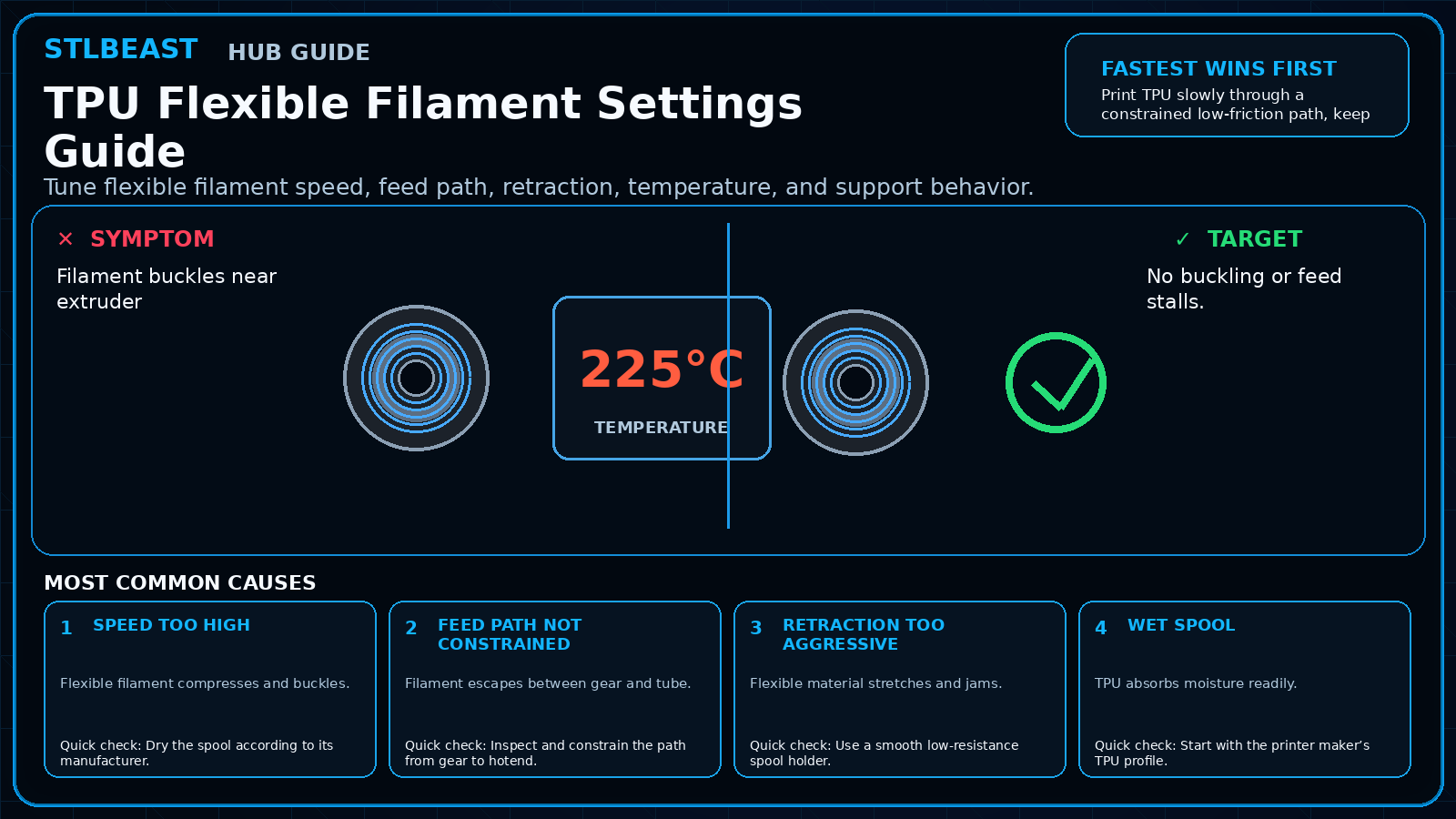
Tools matched to this repair path
Explore a useful STL for your next project.
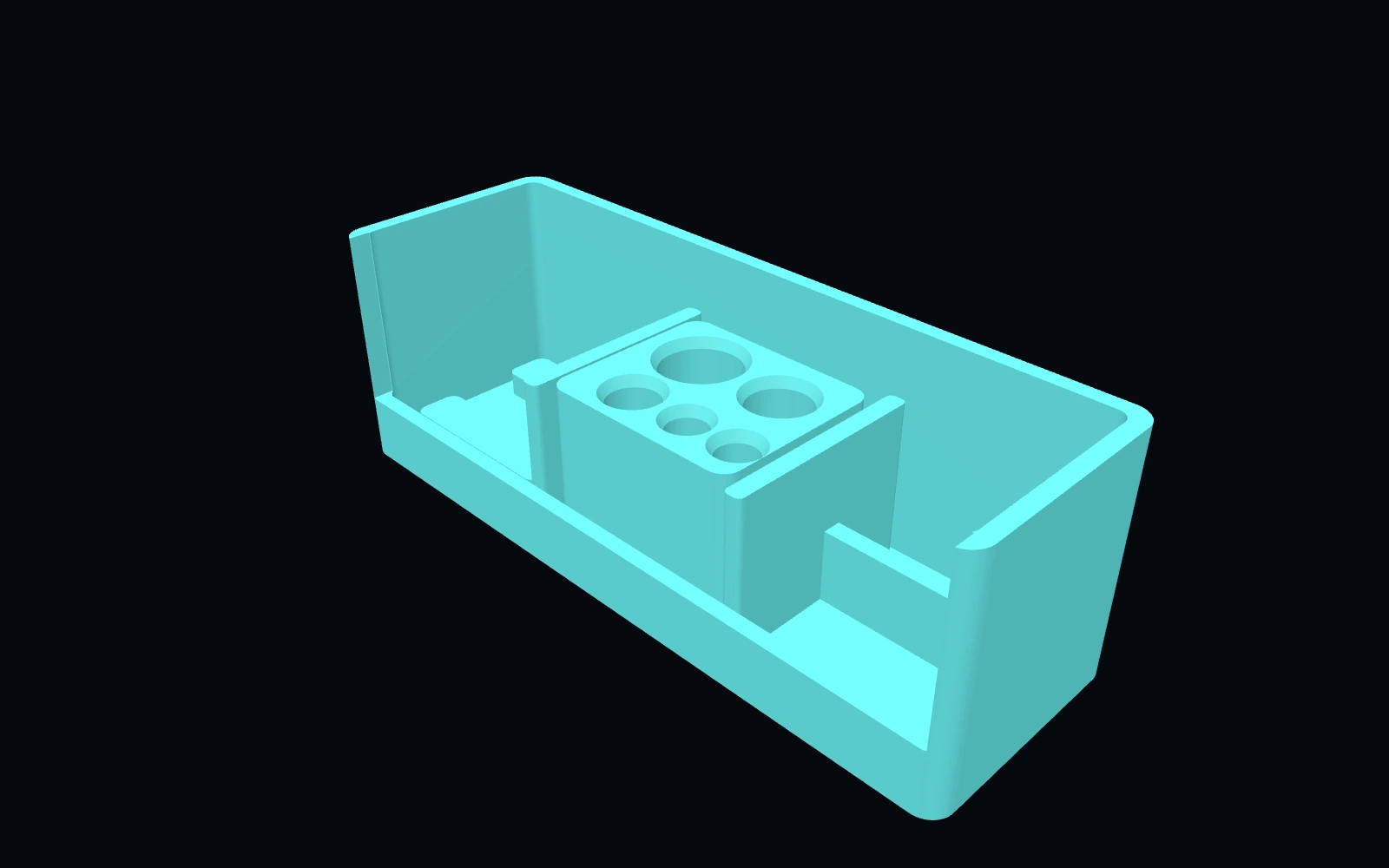 Original digital STLSTLBEAST Filament Path Rescue Station V5
A modular service station for clearing filament paths, staging cutters and picks, and organizing feed-system maintenance tools.
$8.99 CAD · View product →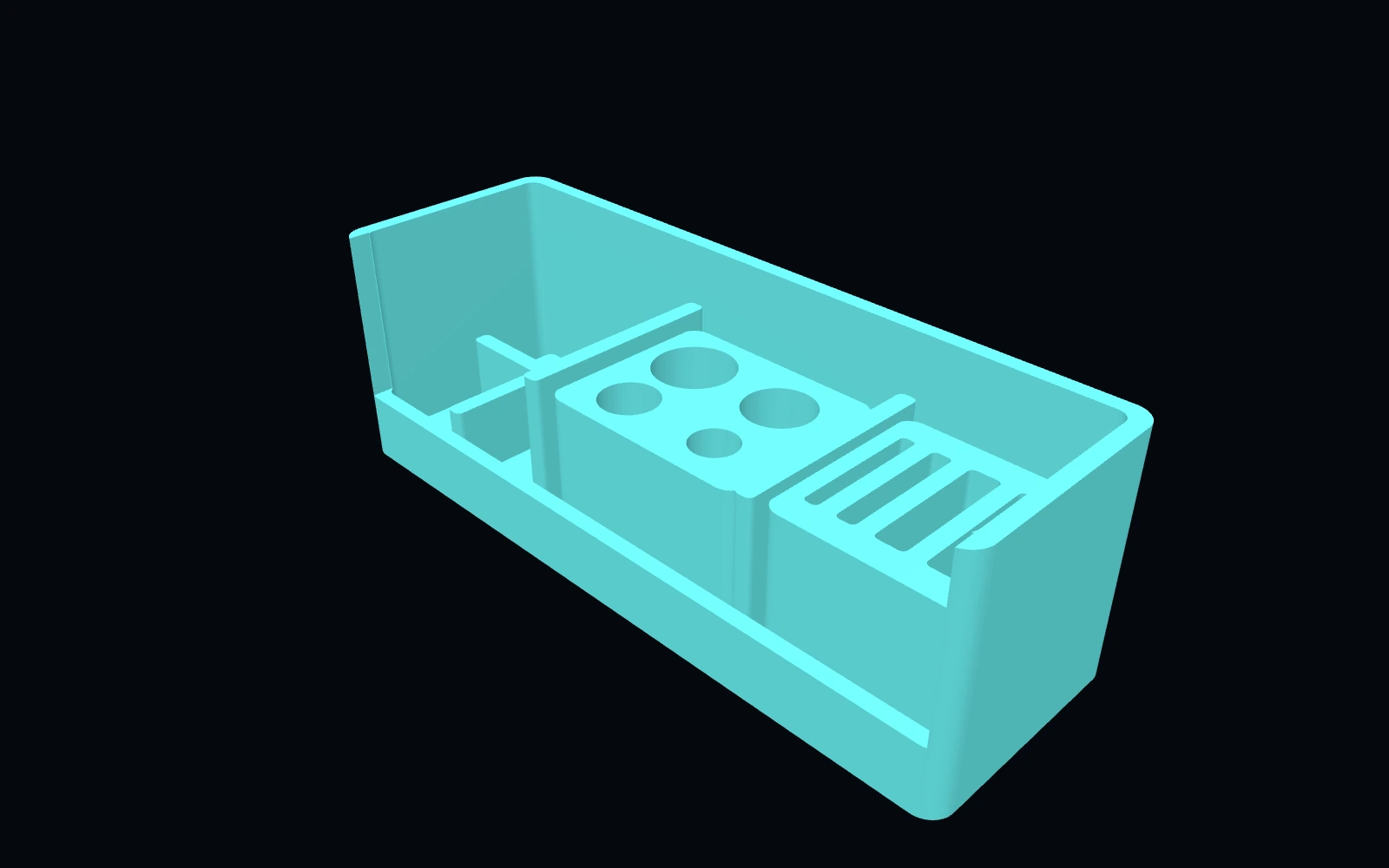 Original digital STLSTLBEAST AMS & Filament Feed Service Station V2
A multi-material feed-system station for rollers, PTFE sections, spool clips, tags, desiccant supplies and feeder hardware.
$9.99 CAD · View product →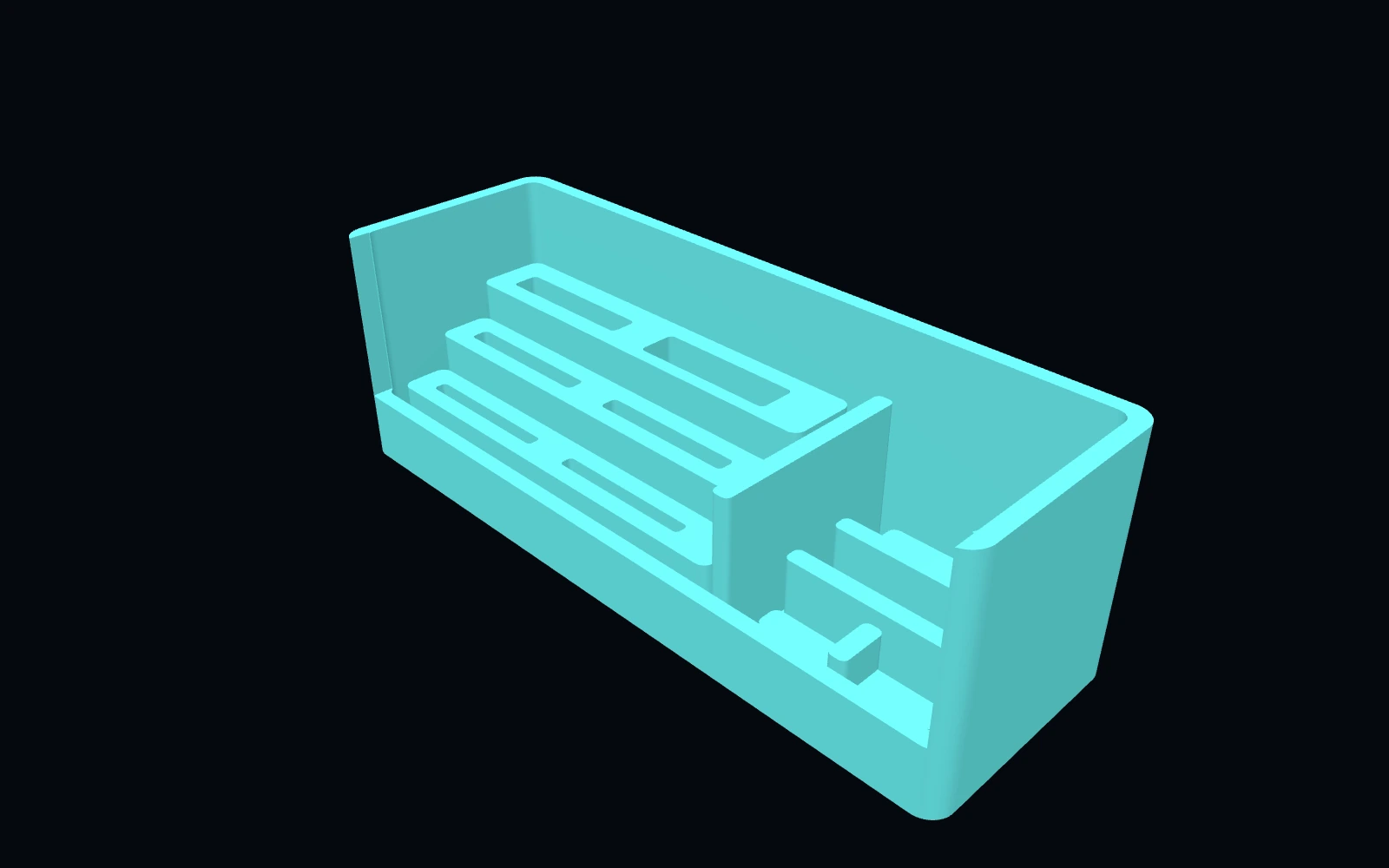 Original digital STLSTLBEAST Filament Swatch & Material ID Station V2
A stepped filament-swatch library for material cards, labels, sample strips, spool clips and identification tags.
$7.99 CAD · View product →Did this fix your print?
Your anonymous answer improves the guide order and AI Doctor paths.